
Documentation · Version 2.2.0
Courtora documentation
Installation, setup and operation of Courtora Smart Court Booking, step by step.
Overview
Courtora enables clubs and sports facilities to reserve courts, rooms, or other bookable resources online – not just for tennis. Members and guests book via the frontend, while administrators manage courts, prices, limits, series, and payments in the WordPress backend.
- Daily view with court tabs or a multi-day grid
- Three price lists: Members, Guests, Member + Guest
- Daily and weekly limits, cancellation deadline, advance booking period
- Recurring bookings with conflict handling
- Manual backend bookings without limits
- Email notifications with editable templates
- Optional online payment via Mollie or cash payment on site
- CSV and Excel export
Requirements
| Component | Requirement |
|---|---|
| WordPress | from 6.2 (tested up to 7.1) |
| PHP | from version 8.0 |
| License | GPLv2 or later |
| Optional | Mollie account for online payments |
Installation
- In WordPress, open "Plugins → Add New" and search for "Courtora".
- Click "Install now" on "Courtora Smart Court Booking". Alternatively, download the ZIP file from the Plugin page on WordPress.org Download and install under "Plugins → Install → Upload Plugin".
- Activate the plugin. Database tables and default settings will be created automatically.
- The menu item “Courtora” appears in the admin menu.
Language: English is the source language. Separate language packs are available for German, French, and Spanish; see [link/reference]. Language packs.
Language packs
Courtora's interface is in English. With a language pack, the booking view, dialogs, email texts, and backend appear in German, French, or Spanish. Each pack includes an MO file that WordPress loads and a PO file for editing.
| Language | file | Download |
|---|---|---|
| German | courtora-smart-court-booking-de_DE-v2.2.0.zip | Download ZIP |
| French | courtora-smart-court-booking-fr_FR-v2.2.0.zip | Download ZIP |
| Spanish | courtora-smart-court-booking-es_ES-v2.2.0.zip | Download ZIP |
Installation
- Download and extract the appropriate language pack.
- The two files
courtora-smart-court-booking-de_DE.moandcourtora-smart-court-booking-de_DE.po(or.fr_FRores_IT) via FTP or via your hosting provider's file manager into the folderwp-content/languages/plugins/Upload. The folder is missing.plugins, you put it on. - In WordPress, select your preferred language under "Settings → General → Site Language". Individual users can also change the language in their own profile.
- Reload the Courtora pages. If you are using a caching plugin, clear the cache beforehand.
Note: The language packs are compatible with version 2.2.0 and also work with older 2.x versions. New texts from later versions will appear in English until the next language pack is released. Once an official language pack is available on translate.wordpress.org, WordPress can replace these files during a translation update.
Quick start
- Create courts under “Courtora → Add court”.
- Pricing rules per court for members, guests and member + guest.
- Settings under “Courtora → Settings”: operator email, cancellation period, limits and roles.
- Create a page and insert the shortcode
[ctra_court_booking]. - Optionally, a second page with
[ctra_my_court_bookings]for “My bookings”.
Courts
Under “Courtora → Courts” you see all courts with ID, sort order and status. Via “Add court” or “Edit” you define:
| Field | Meaning |
|---|---|
| Court name | Display name in the frontend, e.g. “Court 3 (indoor)”. |
| Sort order | Order of the tabs or columns. |
| Status | Active – bookable. Not bookable – visible but blocked; a custom notice appears in the frontend. Hidden – hidden in the frontend. |
| Booking interval | 60 minutes only (default), 30 minutes only, or both. |
| Internal note | Visible only in the backend. |
Use “Copy” to duplicate a court including its pricing rules. Then adjust the name and activate it.
Pricing rules
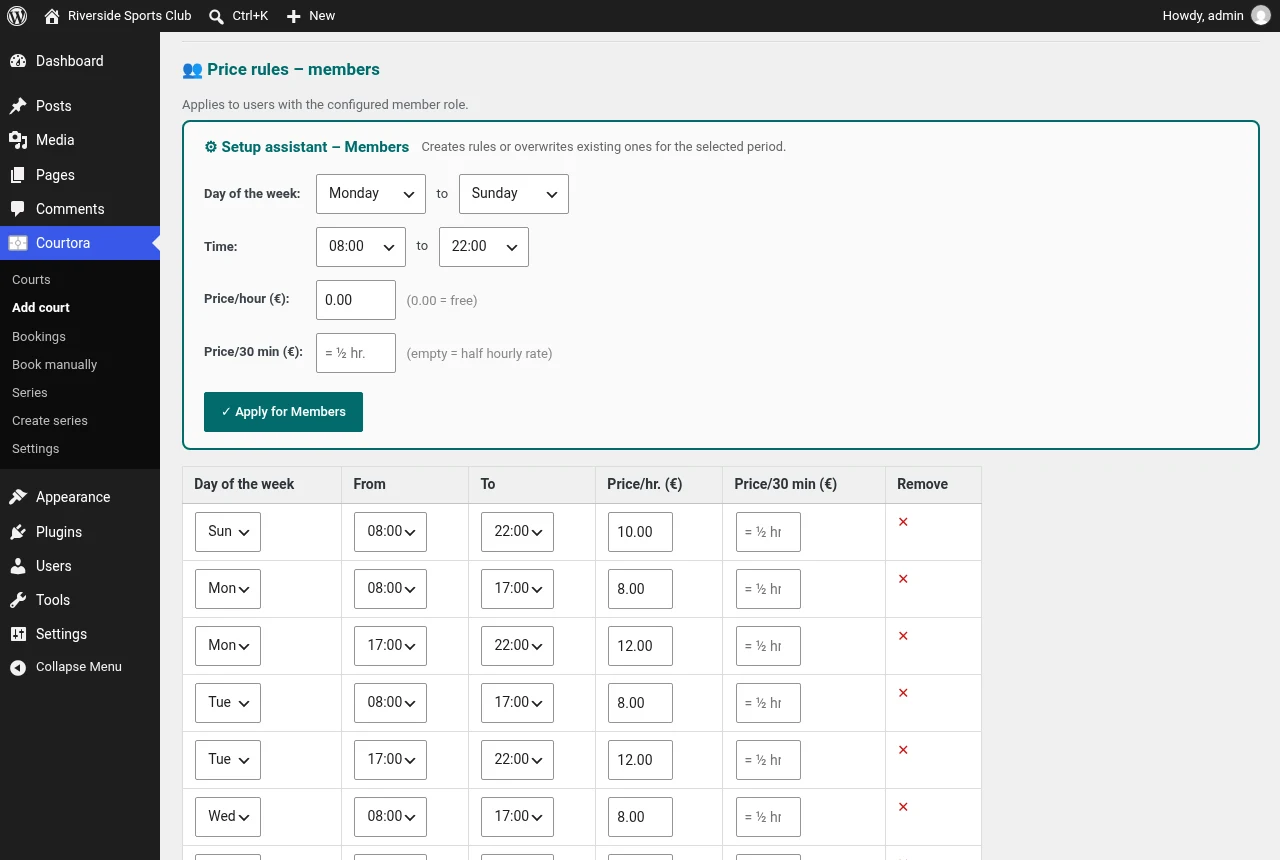
Each court has three independent price tables:
- Members – for users with the configured member role.
- Guests – for users with the configured guest role.
- Member + Guest – when a member ticks “I’m playing with a guest” in the booking dialog.
Each rule consists of weekday, time from/to and price per hour (optionally price per 30 minutes). The setup assistant creates rules for a range of weekdays in one step.
Settings
Roles & booking limits
| Setting | Meaning |
|---|---|
| Member role / Guest role | Which WordPress role counts as member or guest. Logged-in users without a matching role are treated as members. |
| Max. bookings per day / week | Separately for members and guests. 0 = no limit. Each booking counts as 1, whether 30 or 60 minutes. |
Time periods
| Setting | Meaning |
|---|---|
| Advance booking (weeks) | How many weeks ahead bookings are allowed. The limit is shown in the frontend and checked on the server. |
| Cancellation lead time (hours) | Up to how many hours before the start users can cancel themselves. |
| Default number of days | Number of days in the grid view; can be overridden with the shortcode attribute days . |
Display
Status colors for “Free”, “Booked”, “My booking” and “Blocked”, plus the color for header and buttons.
Email templates
Under “Settings → Email” you set the operator email, sender address and an optional BCC address. Subject and text of the booking and cancellation confirmations are fully editable.
| Placeholder | Replaced with |
|---|---|
{name} | Name of the person booking |
{court_name} | Court name |
{date} | Date (DD.MM.YYYY) |
{time_from} / {time_to} | Start / End |
{cancel_period} | Cancellation period |
Shortcodes
[ctra_court_booking] – booking calendar
| Attribute | Values | Default | Example |
|---|---|---|---|
courts | Court IDs, comma-separated | all active courts | courts="1,2" |
view | tabs or grid | tabs | view="grid" |
days | Number of days in the grid | Default number of days | days="3" |
date | Start date YYYY-MM-DD | today | date="2026-06-15" |
[ctra_court_booking]
[ctra_court_booking view="grid" days="7"]
[ctra_court_booking courts="1,2" view="grid" days="3"]
Important: Always use the notation with attribute names: [ctra_court_booking courts="1,2"]. The short form [ctra_court_booking="1,2"] Only works from version 2.1.0 onwards.
[ctra_my_court_bookings] – My bookings
Shows logged-in users their bookings with a cancellation button and booking history.
[ctra_my_court_bookings]Booking views
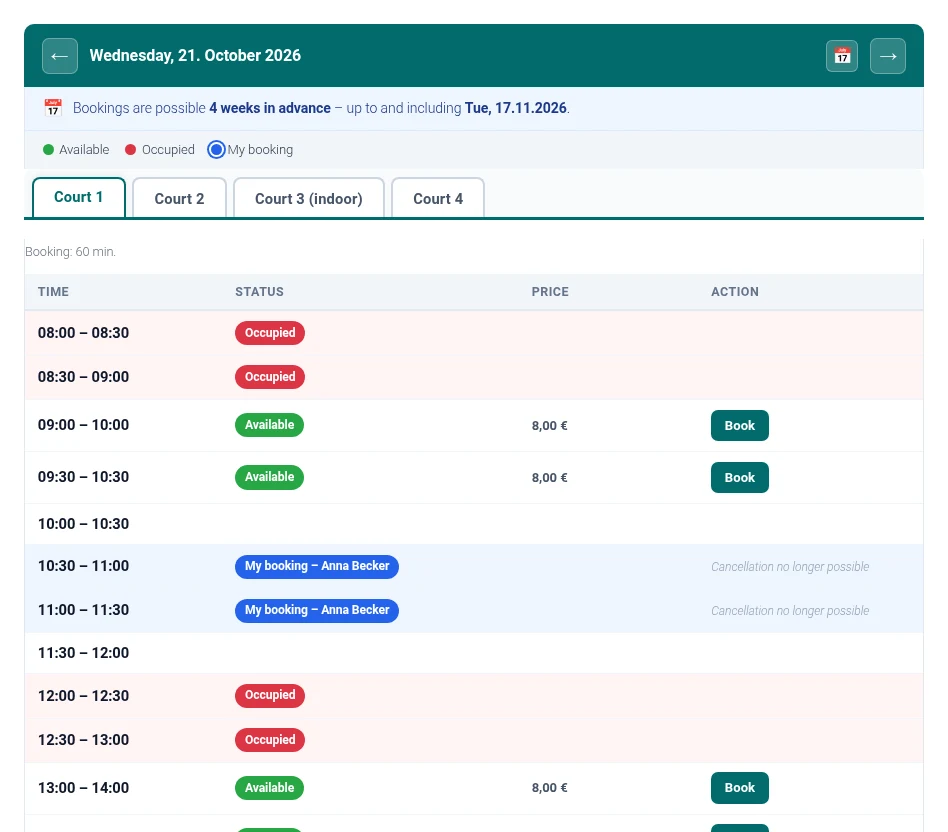
Daily view with tabs (default)
One tab per court, navigation via arrows and calendar. Free, booked and your own bookings are color-coded. A notice shows how far ahead you can book.
Grid view
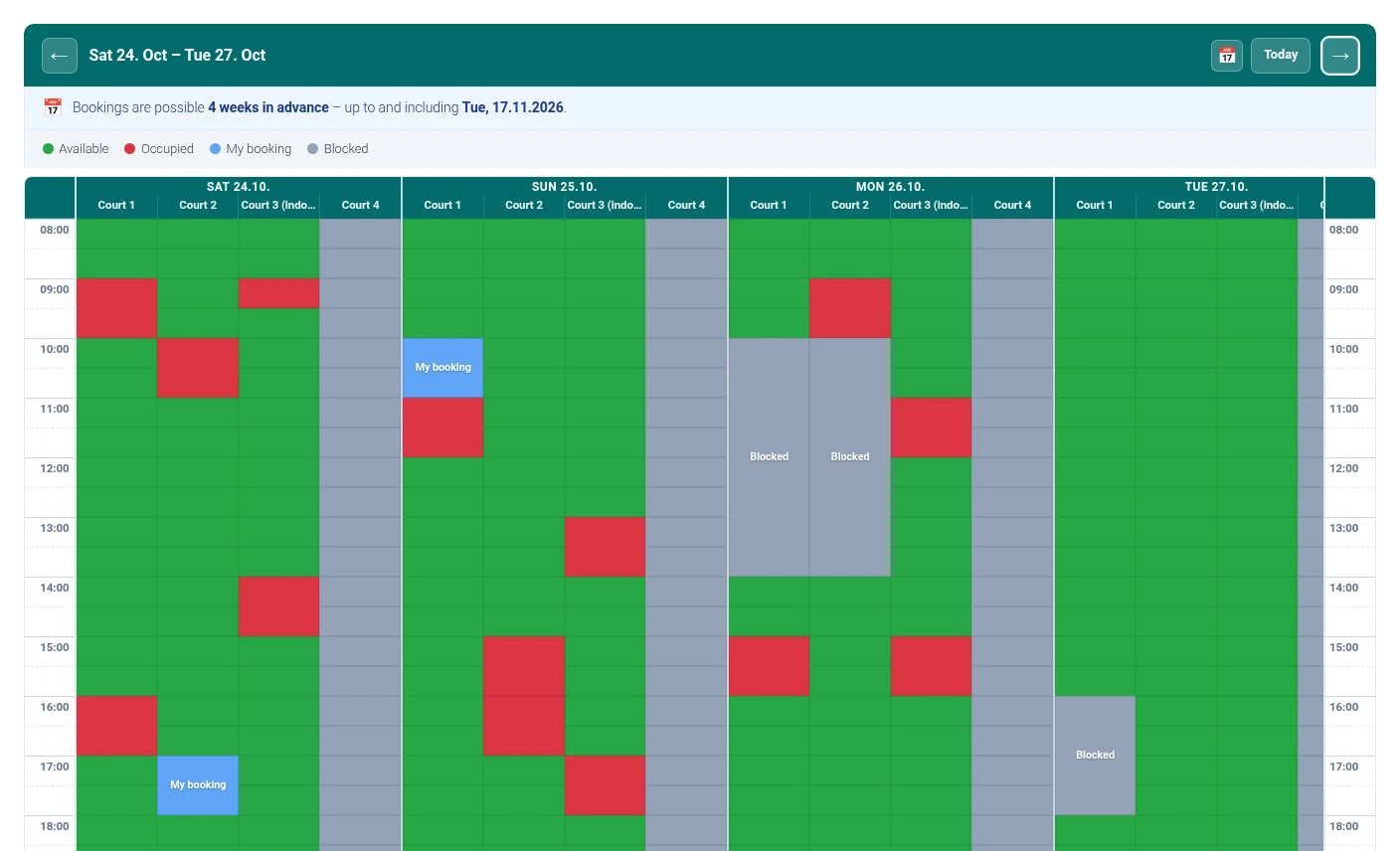
With view="grid" several days and courts appear side by side in 30-minute slots. Courts that can’t be booked are grey with a tooltip, days outside the booking window are greyed out. On screens below 768 px the display switches to the tab view automatically.
Booking dialog
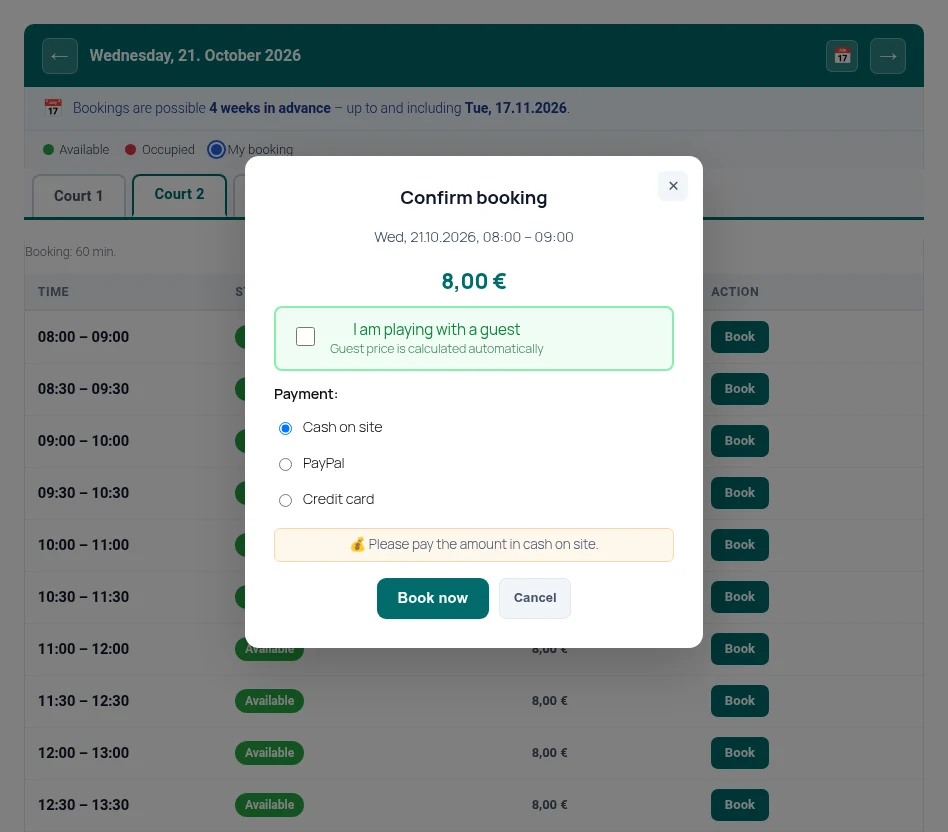
A click on a free slot opens the dialog with time, price, guest option and – if enabled – the choice of payment method.
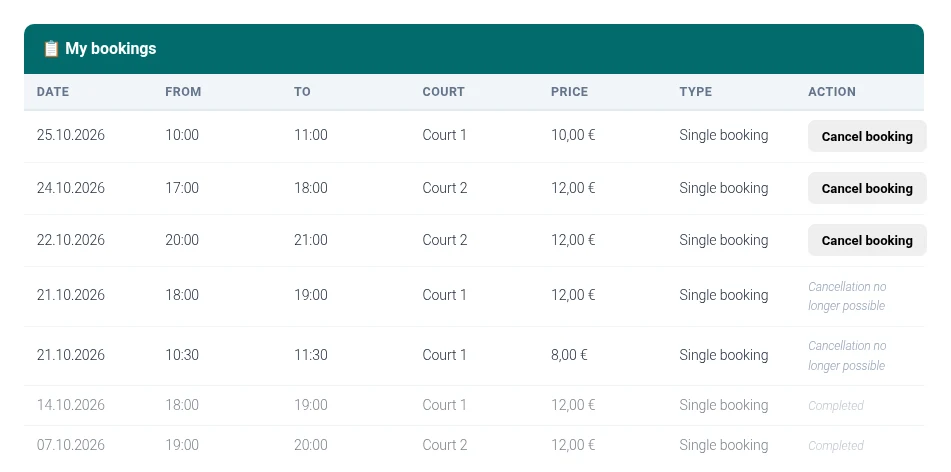
My bookings
Users see their upcoming and past bookings. They can cancel themselves within the cancellation period; the booker and the operator receive an email.
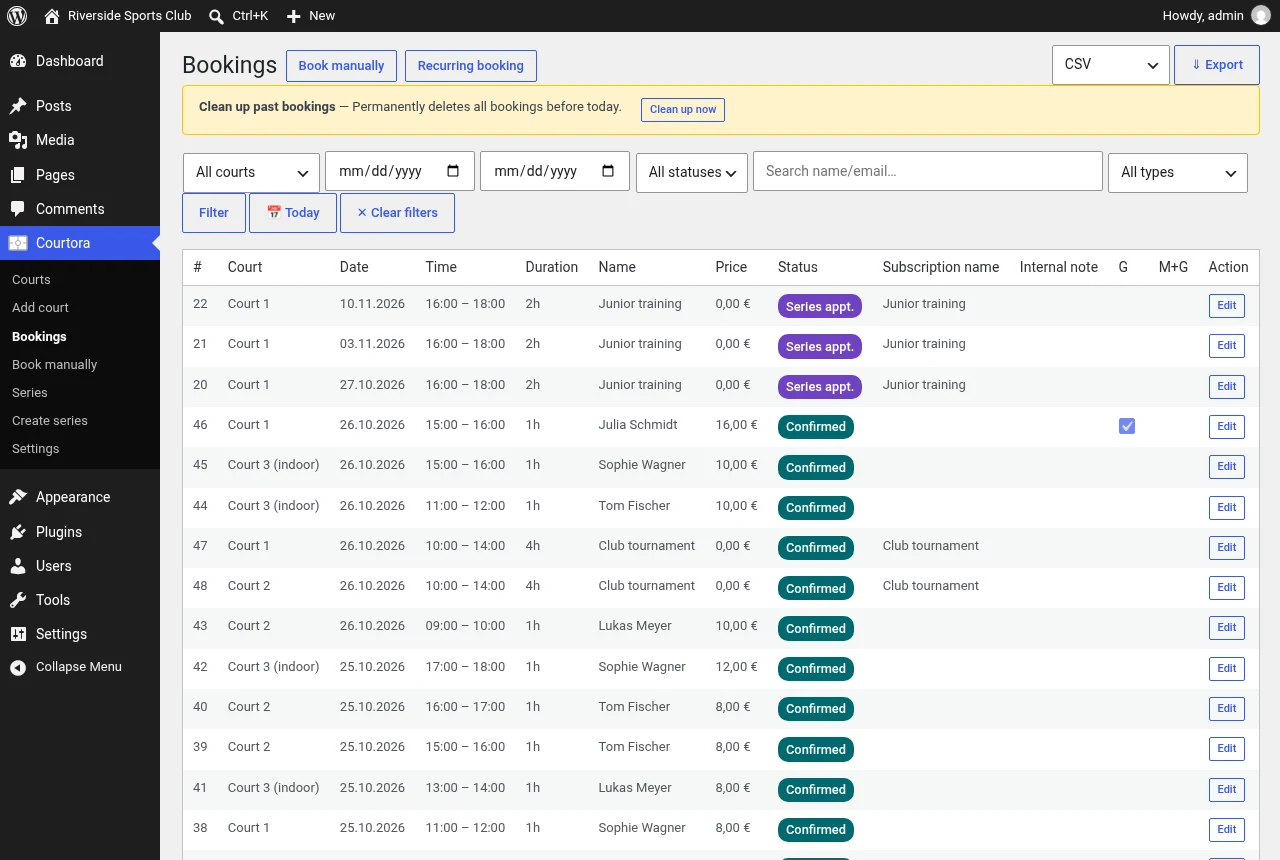
Booking management
“Courtora → Bookings” lists all bookings with filters by court, period, status, type and name/email. Bookings can be edited, cancelled and exported as CSV or Excel. Past bookings before a chosen date can be permanently purged.
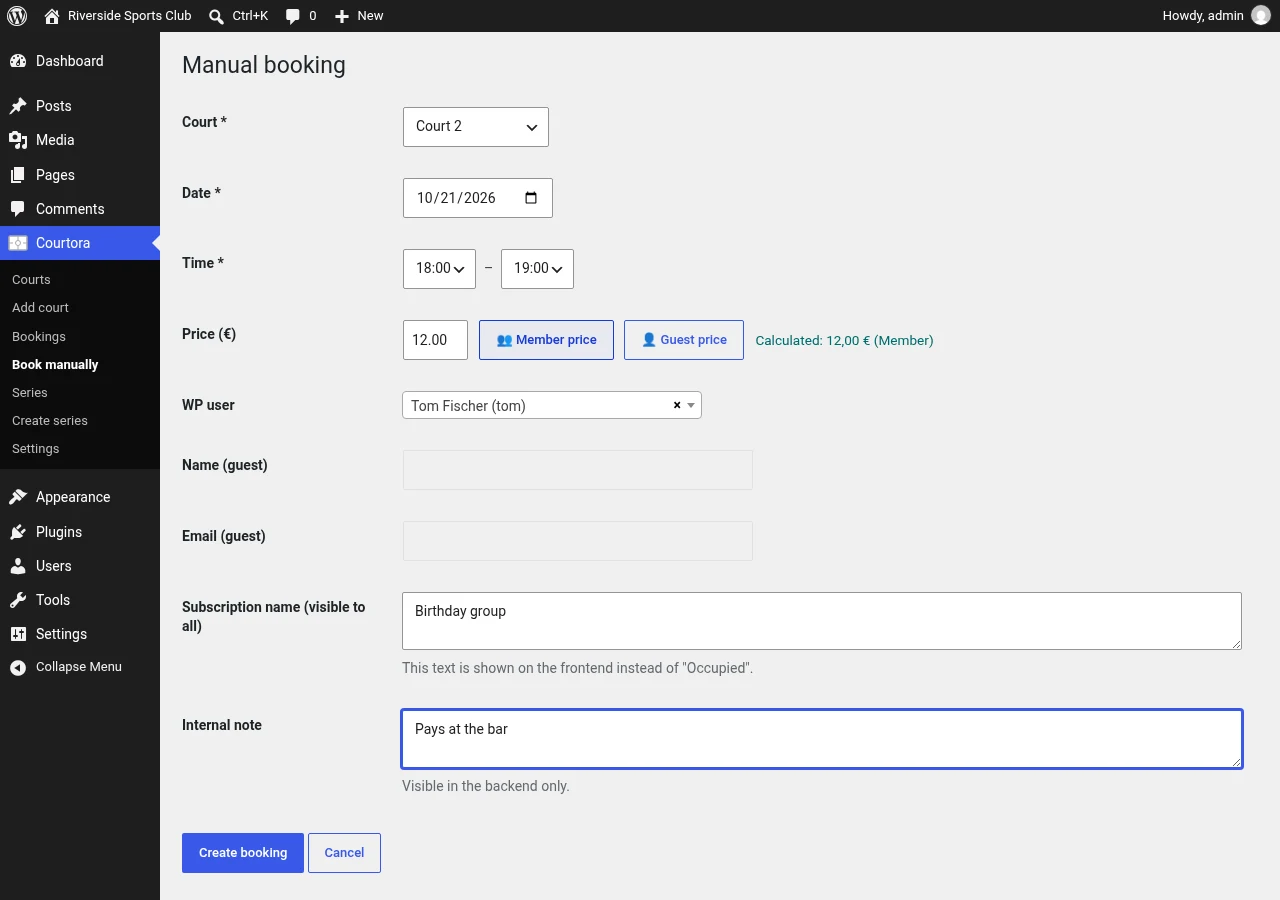
Manual booking
Under “Courtora → Book manually” you enter bookings for members, guests or events.
- Administrators are not bound by daily, weekly or duration limits or by the advance booking window.
- The times must correspond to the 30-minute grid.
- The price you enter applies – even €0 (free). It can be calculated via “Member price” / “Guest price”.
- The “Subscription name (visible to all)” appears in the frontend instead of “Booked”; the internal note only in the backend.
- If bookings overlap, a dialog asks whether the existing booking should be cancelled; the booker and the operator are notified.
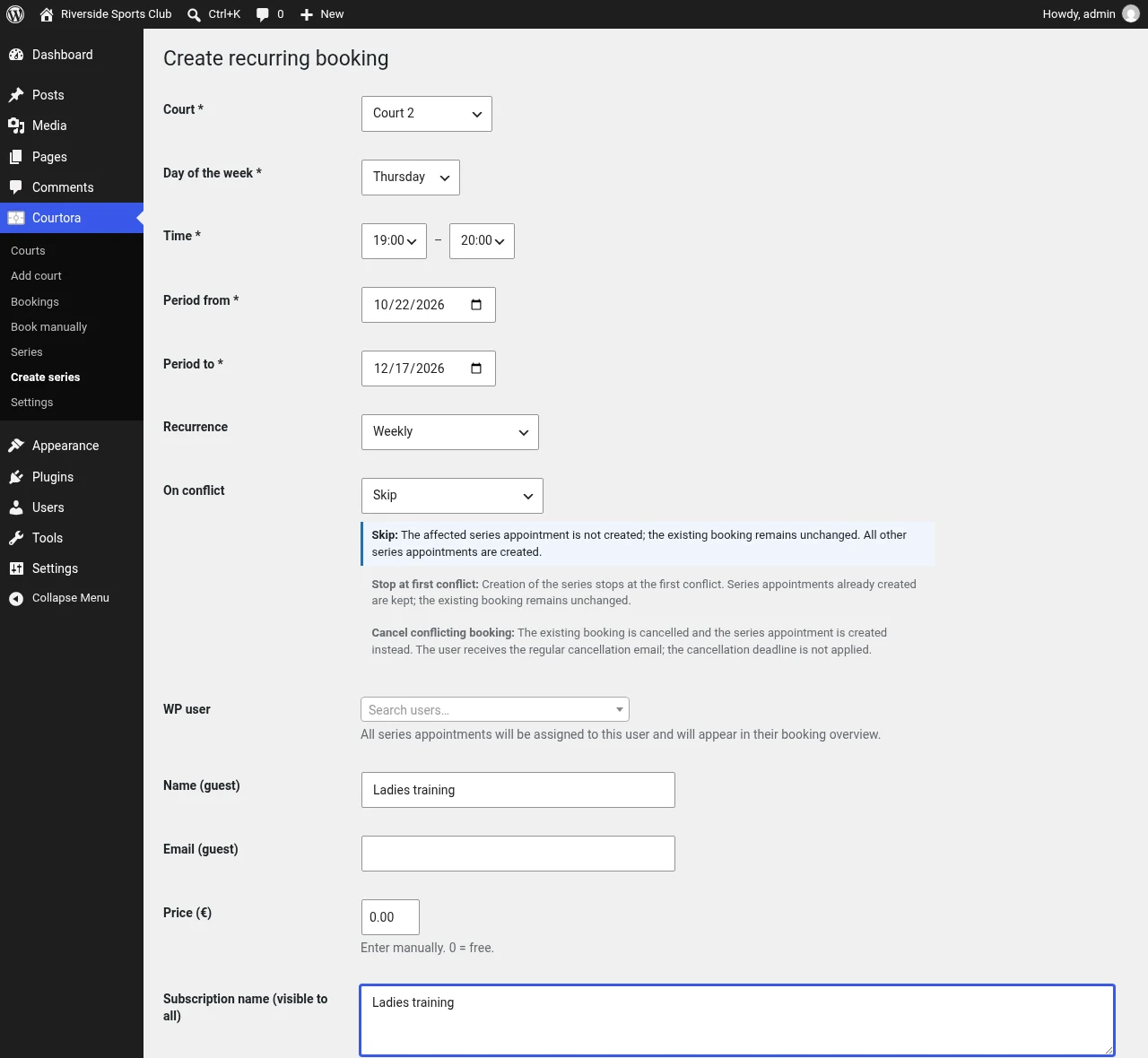
Recurring bookings
Under “Courtora → Create series” you create recurring bookings (e.g. weekly training) with court, weekday, time, period and repetition. On conflicts with existing bookings:
| Option | Effect |
|---|---|
| Skip | The conflicting recurring date is not created; the existing booking remains. |
| Abort | The series stops at the first conflict; dates already created remain. |
| Cancel booking | After a confirmation prompt, the existing booking is cancelled (with notification, regardless of the cancellation period) and the recurring date is entered. |
Note: With “Cancel booking”, bookings paid online are not refunded automatically via Mollie. You trigger refunds yourself in the Mollie dashboard.
Online payment
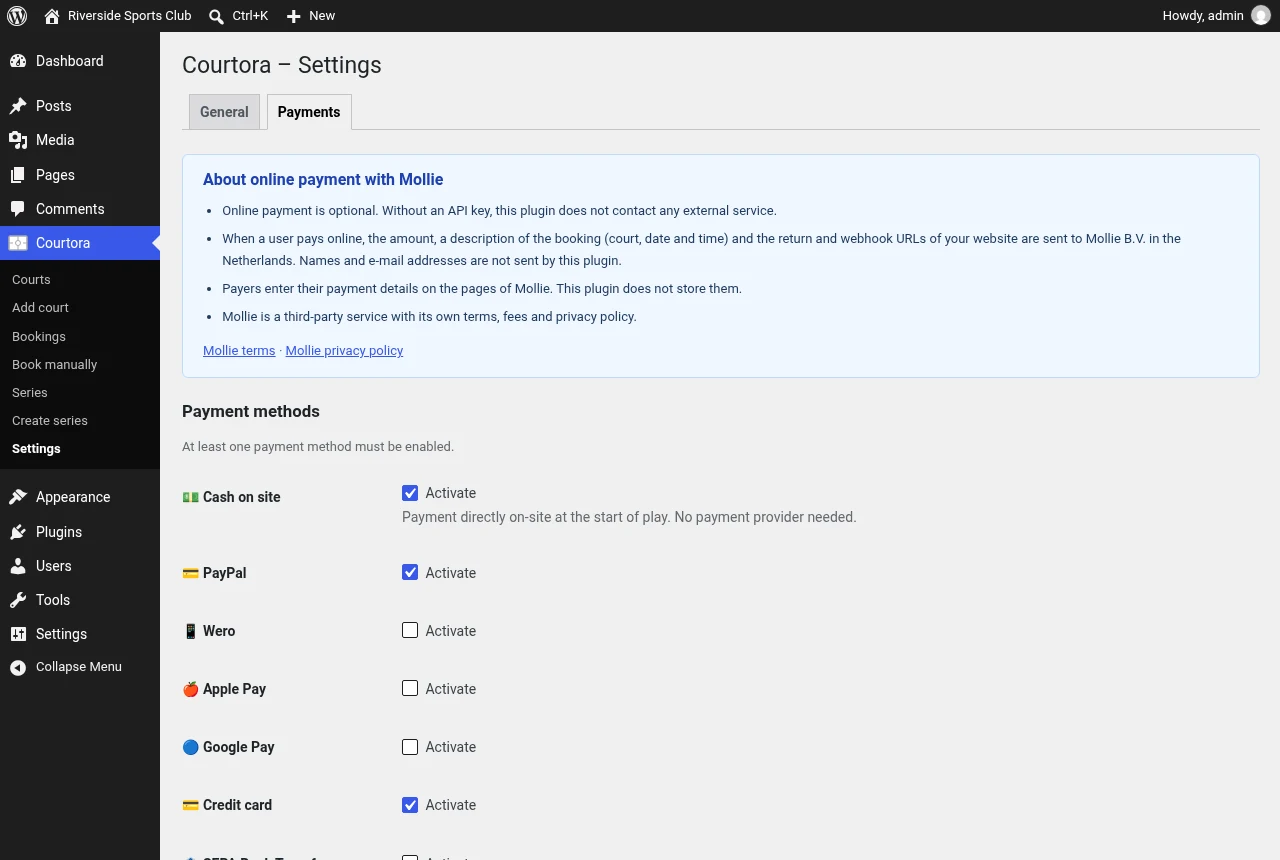
Online payment is optional and disabled until you enter a Mollie API key under "Courtora → Settings → Payments". You can verify the key using the connection test.
- Payment methods: cash on site, PayPal, Wero, Apple Pay, Google Pay, credit card, bank transfer (depending on what is enabled in your Mollie account).
- Payment takes place on Mollie’s pages; Courtora does not process any payment data.
- Transmitted are the amount, description (court, date, time), return and webhook URL, booking ID and plugin version – no names or email addresses.
- Courtora will not connect to external services without an API key.
Privacy in the plugin
Courtora stores bookings in its own tables: date, time, court, WordPress user ID or a guest’s name and email, notes, price and payment status.
- Privacy guide: Courtora adds a suggested text under "Settings → Privacy". This is not legal advice and must be reviewed by the operator.
- Data export: Bookings and series are found via user account and email address.
- Data deletion: Future bookings are cancelled without an email; name, email, account link and notes are removed. Paid bookings are kept without personal data for accounting. The same applies when a WordPress user is deleted.
- Uninstallation: Deleting the plugin via the plugin page will remove all data.
Caching
Caching plugins and hosting caches can cache the booking page and scripts.
- Clear the website and hosting cache after every update.
admin-ajax.phpshould be excluded from caching; alternatively, send the following headers:
Cache-Control: no-store, no-cache, must-revalidate, max-age=0, private
Pragma: no-cache
Many hosting providers bypass the cache for logged-in users. Therefore, also test while logged out or in a private window.
Frequently Asked Questions
Do I need to use Mollie?
No. Without online payment, users pay on site.
Does Courtora only work for tennis?
No. Any bookable resource is possible, e.g., padel, squash, badminton, soccer court or club room.
What limits apply to administrators?
None. Manual bookings and series ignore the limits set in the settings.
Visitors see old buttons or data.
Clear the cache and exclude admin-ajax.php from caching (see Caching).
How can I support Courtora?
With a voluntary contribution via PayPal, a review in the WordPress plugin directory or help with translations.